Search, curate, produce, and review
Video walkthrough: search for moments, collect a Working Set, generate a cut, and review it in Studio. Use fullscreen to read the controls. The recording uses different demo footage from the written example below.
Turn three moments from Nina (2025) into a quiet, dialogue-led teaser. This example uses real actors and original English speech—not animation, stock placeholders, or generated dialogue.
Footage: Nina, written and directed by Brendan Kaplan, licensed under CC BY 3.0 on the creator’s video page. These tutorial excerpts are edited software demonstrations, not the original film or an endorsement. Full credits and reuse conditions.
The screenshots were captured in Composer’s public-docs-demo index.
Select an image to open its full 2555 × 1508 frame in a new tab.
1. Find a specific story beat
In Search, filter the source list by nina and select only
nina-2025-english-cc-by-3.0. Enter leaving in the main content query,
choose Semantic, and keep Visual and Transcription enabled.
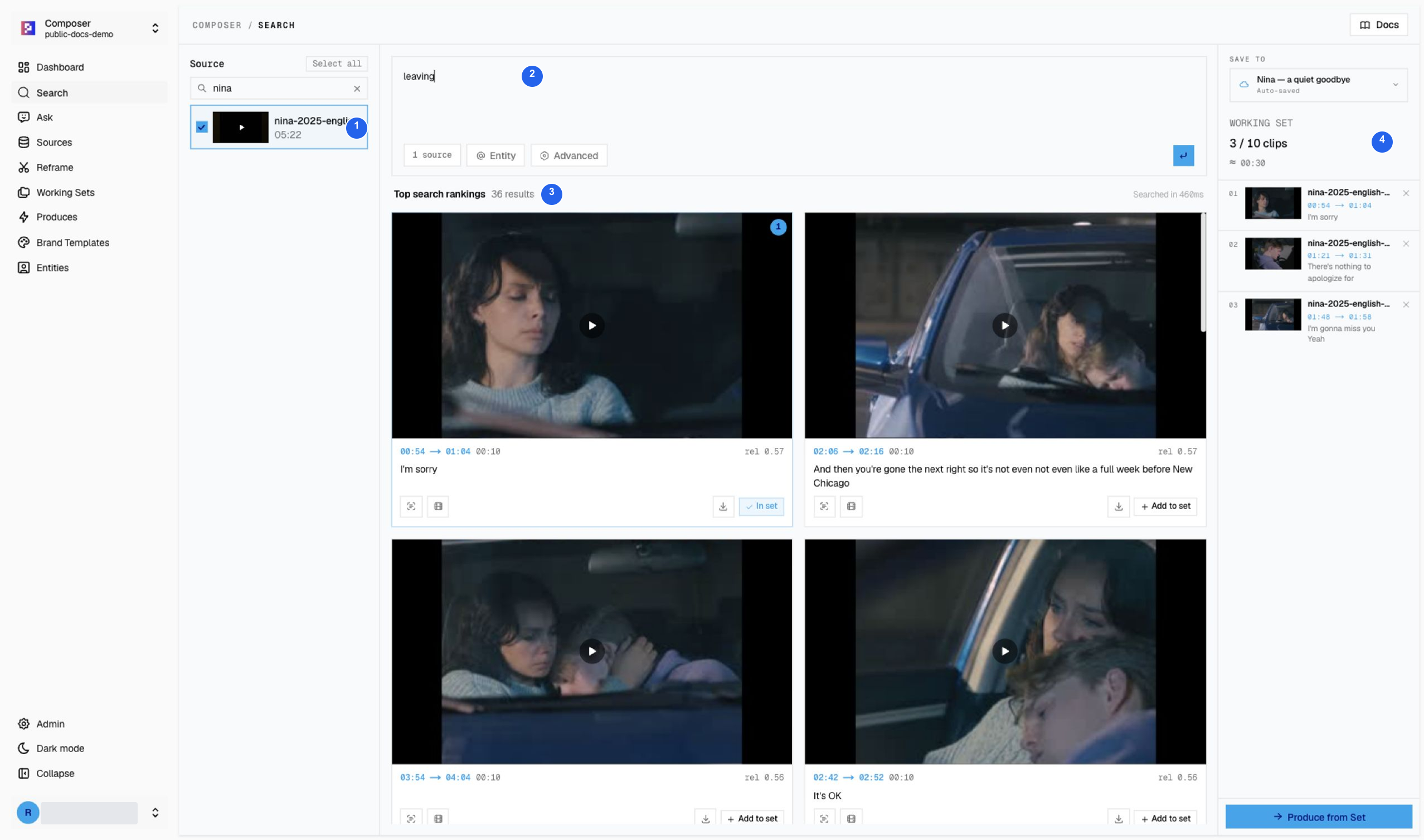
1 Selected source, 2 content query, 3 ranked results, 4 Working Set clip count.
This run returned 36 results. Semantic search can find an apology, reassurance, or a goodbye even when the exact word “leaving” is not spoken. Preview the actual picture and dialogue before saving; a ranked result is a suggestion, not an editorial decision.
2. Keep three complementary moments
Create Nina — a quiet goodbye and save these source windows in order:
| Source range | Story beat | Dialogue cue |
|---|---|---|
| 00:54–01:04 | Apology | “I’m sorry” |
| 01:21–01:31 | Reassurance | “There’s nothing to apologize for” |
| 01:48–01:58 | Missing each other | “I’m gonna miss you” |
The ranges are ten-second search windows, not exact boundaries of the spoken phrases. Together they provide an approximately 30-second pool for Produce to trim and arrange.
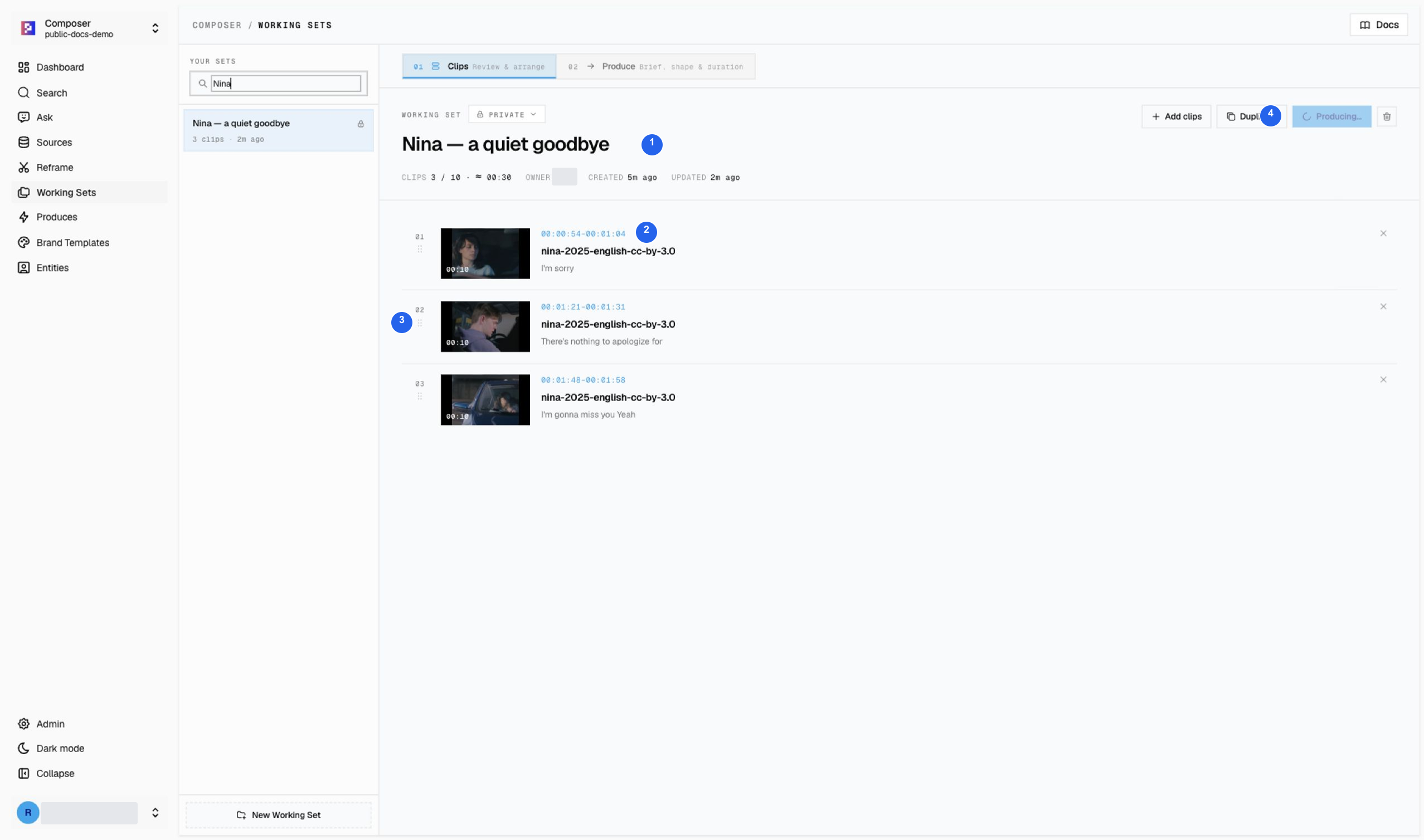
1 Set name, 2 source time range, 3 ordered clips, 4 Produce action. This capture was taken after generation started, so the action reads Producing… and is disabled. Do not start a duplicate job.
3. Generate the first cut
Open Produce, choose Teaser, 0:30 Snap, and the Pixel ML Landscape 16:9 Brand Template. The brief used for this run was:
Create a calm 30-second English dialogue teaser from Nina about a quiet goodbye. Use the selected moments in order: the apology, reassurance, then missing each other. Keep original speech and natural pauses; no invented dialogue, extra footage, music, or voice-over. Fit the original 4:3 picture inside the 16:9 canvas without stretching or cropping faces. Use the selected Pixel ML brand template and readable English captions. Name it nina-a-quiet-goodbye.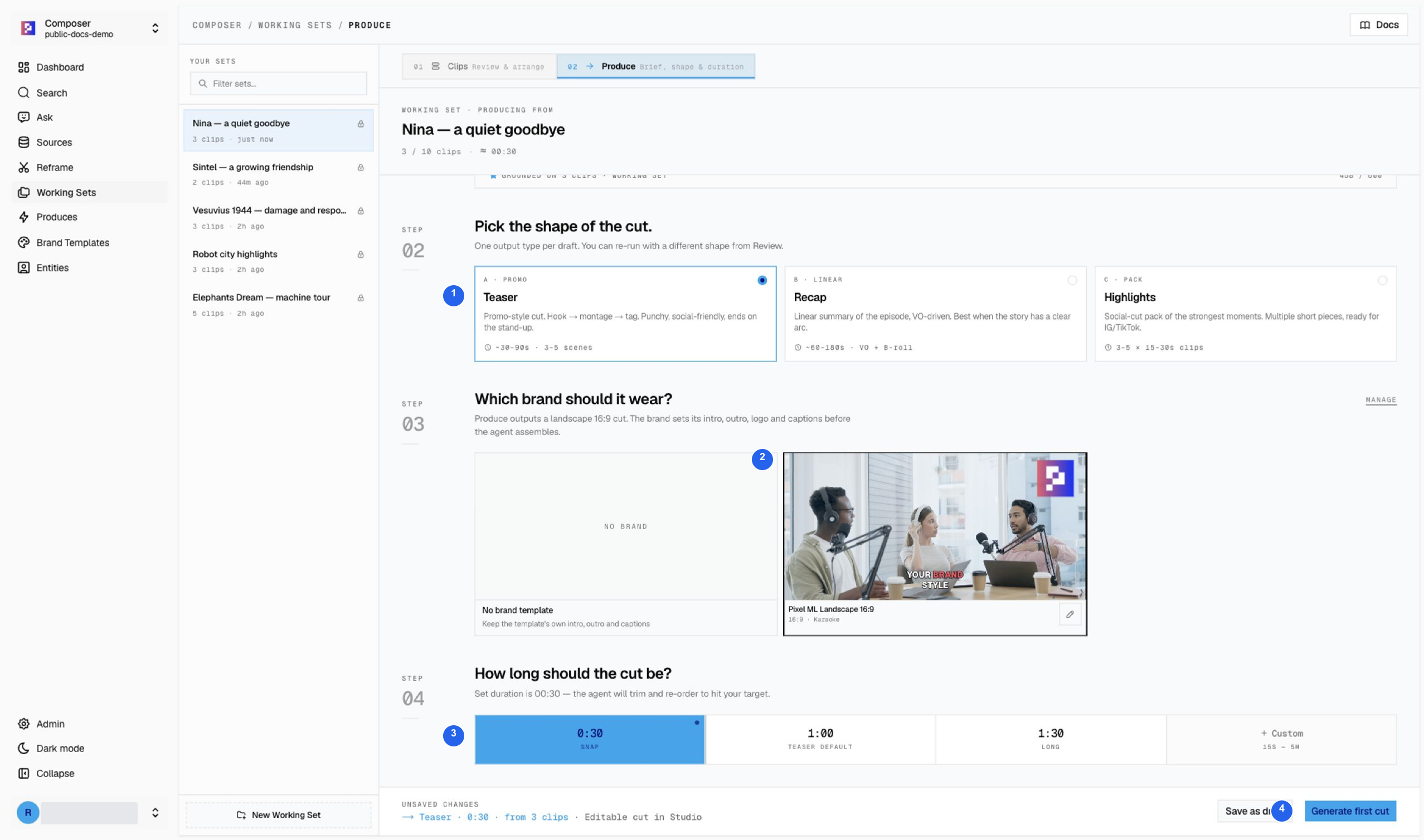
1 Teaser, 2 Brand Template, 3 duration, 4 Generate first cut. This image shows the options below the brief; scroll upward in the form to edit the brief itself.
Select Generate first cut once. When generation finishes, open nina-a-quiet-goodbye in Studio. The initial draft displayed approximately 30 seconds and 18 caption words, with Pixel ML intro and outro clips. A target duration and a written framing request still need review in Studio.
4. Add the missing response and preserve the framing
Insert a line from the source
The initial cut skipped the short response “For what” after the apology. Choose Extend a clip immediately after that first section.
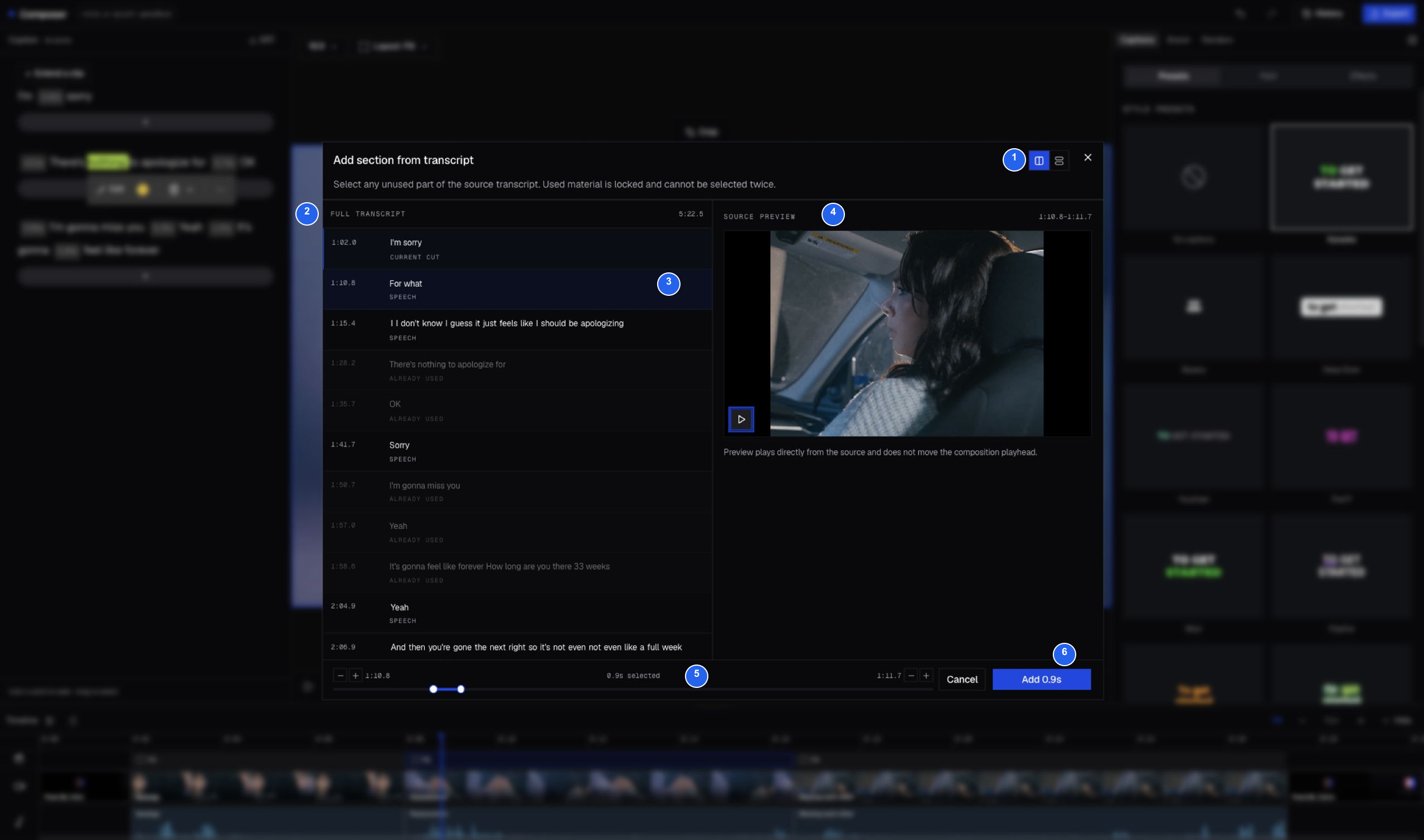
1 View mode, 2 full source transcript, 3 selected response, 4 independent source preview, 5 range controls, 6 Add duration.
Select the unused response at about 01:10.8. In this run, extending the end twice by 200 ms produced the displayed range 01:10.8–01:11.7. Preview it, then select Add 0.9s. Already-used material is locked.
The insertion increased the draft to 20 caption words and approximately 31 seconds. Play across the new join to check that the response and the following reassurance feel natural.
Keep the original 4:3 picture inside the landscape output
The generated draft used Fill, despite the request in the brief. Select each of the four body scenes in the timeline—including the new response— and choose Fit. Keep the project canvas at 16:9.
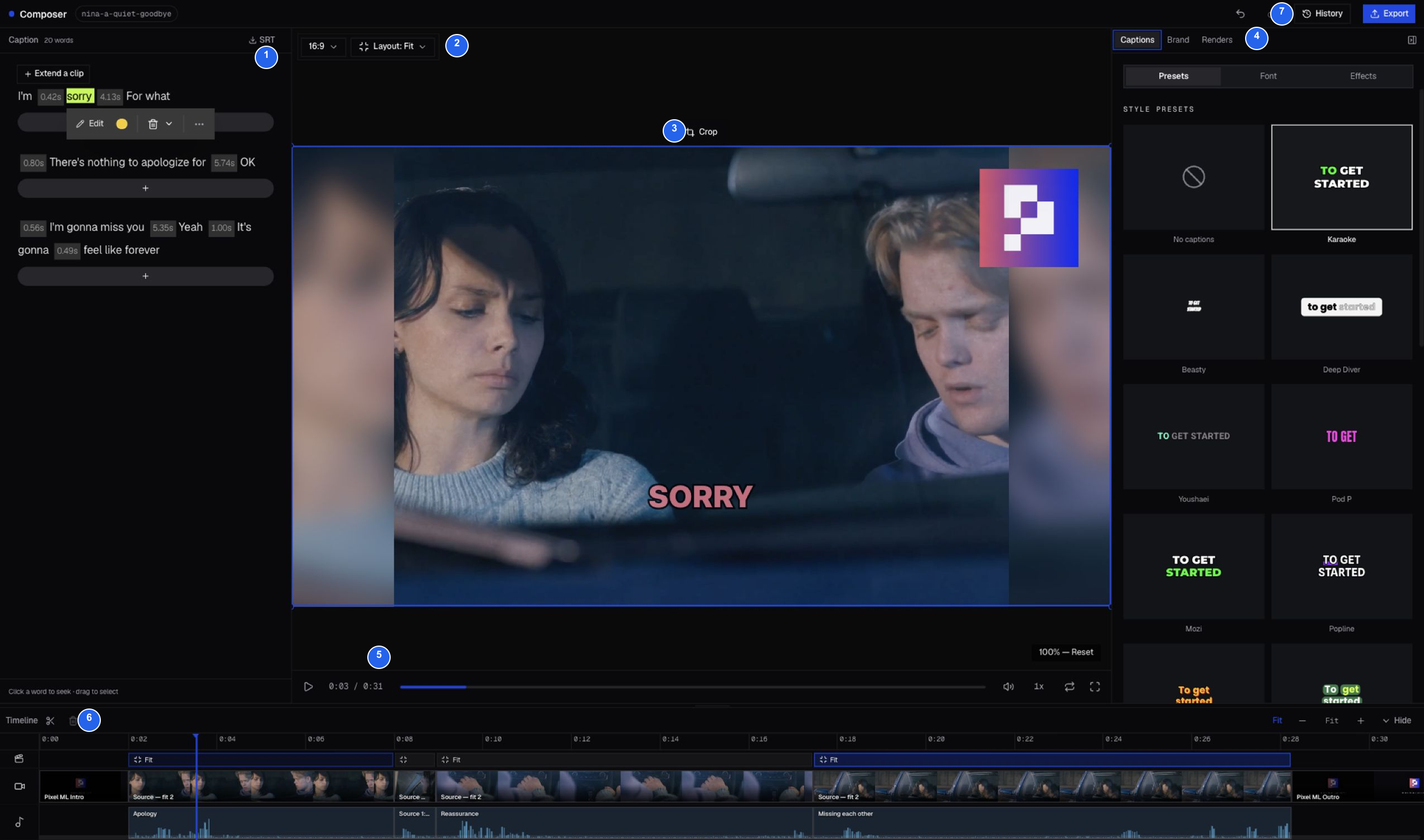
1 Script, 2 aspect/layout, 3 preview, 4 captions, brand, and renders, 5 playback, 6 timeline, 7 history/export.
The foreground picture now retains its original 4:3 proportions; this layout uses blurred side fill inside the 16:9 canvas. Check both actors and every scene boundary rather than assuming the first scene’s setting applies to the rest of the project.
Keep the selected Pixel ML intro, outro, and logo for this branded example. Caption edits do not change the actors’ source audio.
5. Review and export
Wait for caching, then play the complete draft. Open Renders to inspect the settings before starting a render; the header Export button starts rendering immediately.
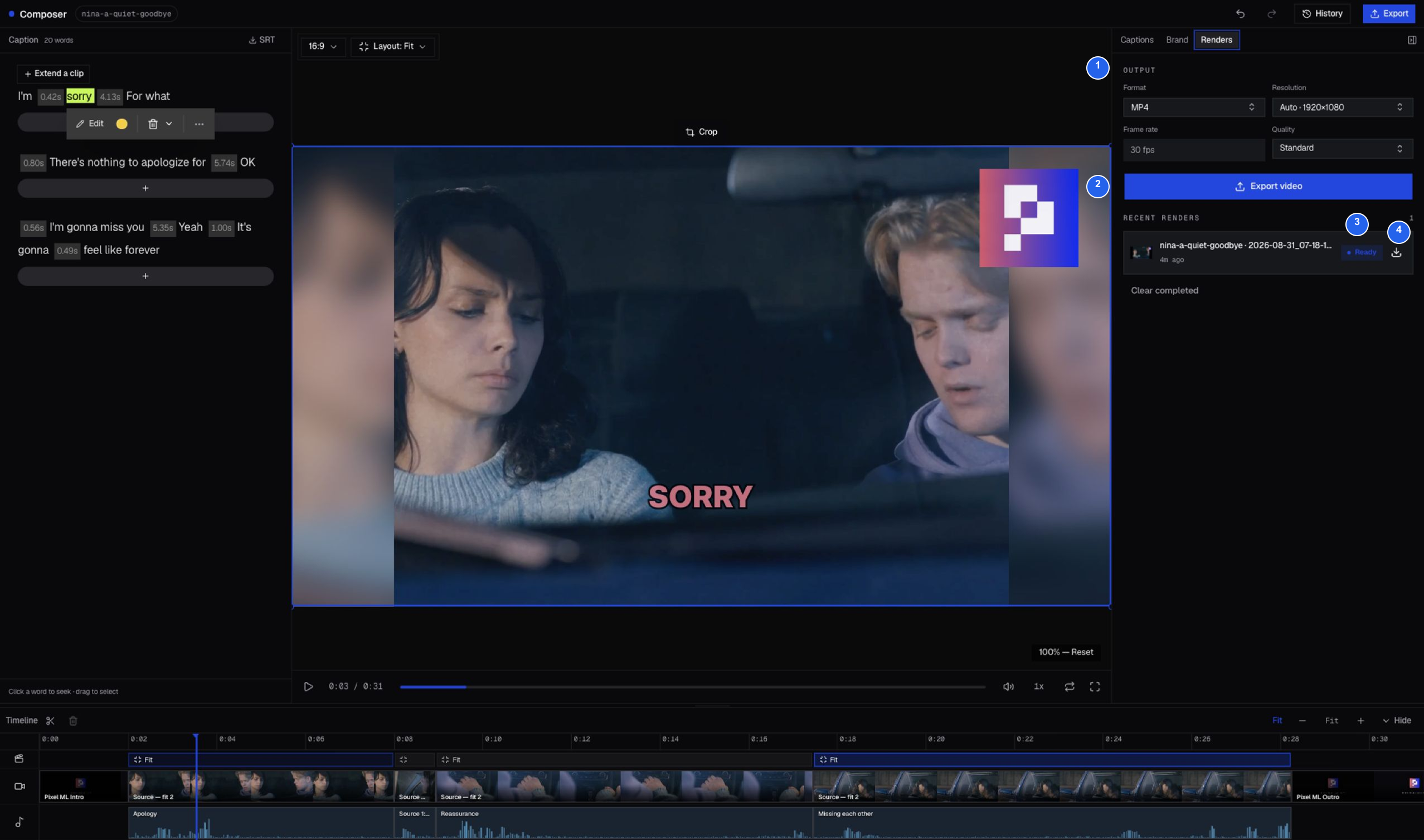
1 Output settings, 2 Export video, 3 Ready render, 4 Download. This example uses MP4, Auto · 1920×1080, Standard, and the fixed 30 fps setting.
Download and play the complete file outside Composer before publishing. Ready confirms that rendering finished; it does not certify caption accuracy, editorial continuity, or third-party rights. Include the film’s attribution and identify the output as an edited excerpt.
For caption, layout, crop, history, and export controls, see Studio’s feature-by-feature guide.